
Starting with Screens 5.8.6, you can use Dictation to speak text and have Screens type it on the remote computer for you.
Dictation uses Apple’s on-device speech recognition introduced in iOS 26, iPadOS 26, macOS 26 (Apple Silicon), and visionOS 26. As a result, Dictation is only available on those OS versions or newer.
Dictation is available on iPhone, iPad, Mac, and Vision Pro.
Usage
iPhone
To use Dictation, tap the Microphone button in the toolbar:
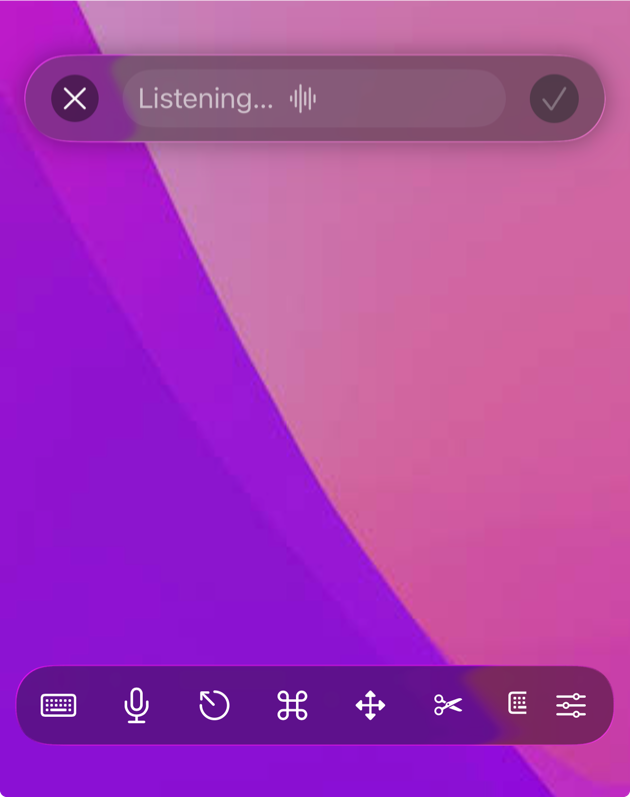
- The Dictation button is enabled by default for new users.
- You can show or hide it in: Settings > Controls > Toolbars > iPhone
Make sure Screens has the required permissions.
Tap the Microphone, start speaking, then tap the checkmark when you're done.
Screens will type the recognized text into the currently focused field on the remote computer.
iPad
To use Dictation, tap the Microphone button in the toolbar:

- The Dictation button is enabled by default for new users.
- You can show or hide it in: Settings > Controls > Toolbars > iPad
Make sure Screens has the required permissions.
Tap the Microphone, start speaking, then tap the checkmark when you're done.
Screens will type the recognized text into the currently focused field on the remote computer.
Mac
To use Dictation, click the Microphone button in the toolbar:
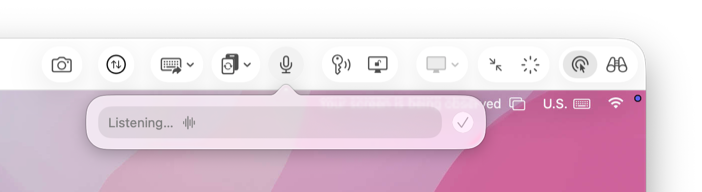
Make sure Screens has the required permissions.
Click the Microphone, start speaking, then click the checkmark when you're done.
Screens will type the recognized text into the currently focused field on the remote computer.
Vision Pro
To use Dictation, tap the Microphone button in the toolbar:

- The Dictation button is enabled by default for new users.
- You can show or hide it in: Settings > Controls > Toolbars > Vision Pro
Make sure Screens has the required permissions.
Tap the Microphone, start speaking, then tap the checkmark when you're done.
Screens will type the recognized text into the currently focused field on the remote computer.
Permissions
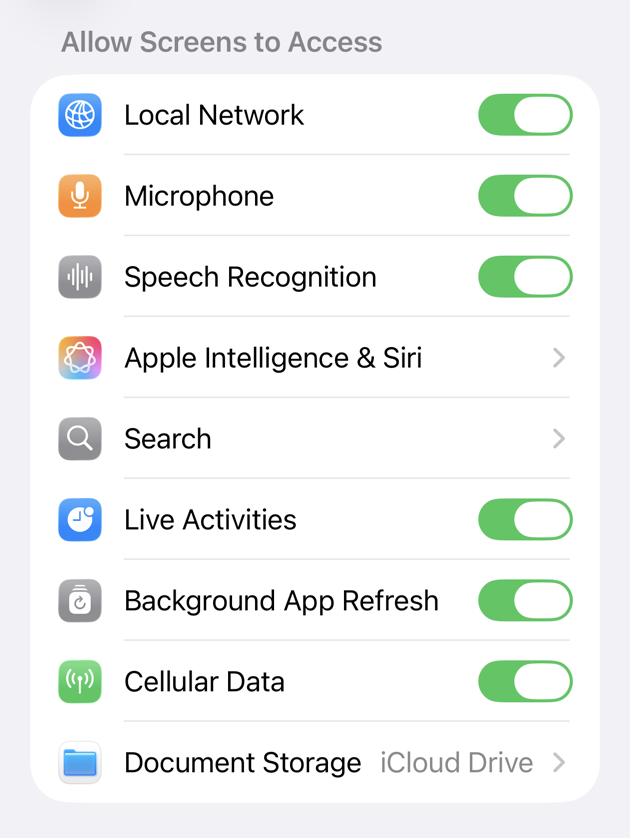
Dictation requires access to both the microphone and speech recognition.
The first time you use Dictation, Screens will prompt you to grant access. If you previously denied permission, follow the steps below to enable it.
iPhone, iPad, and Vision Pro
- Open the Settings app
- Go to Apps > Screens
- Enable:
- Microphone
- Speech Recognition
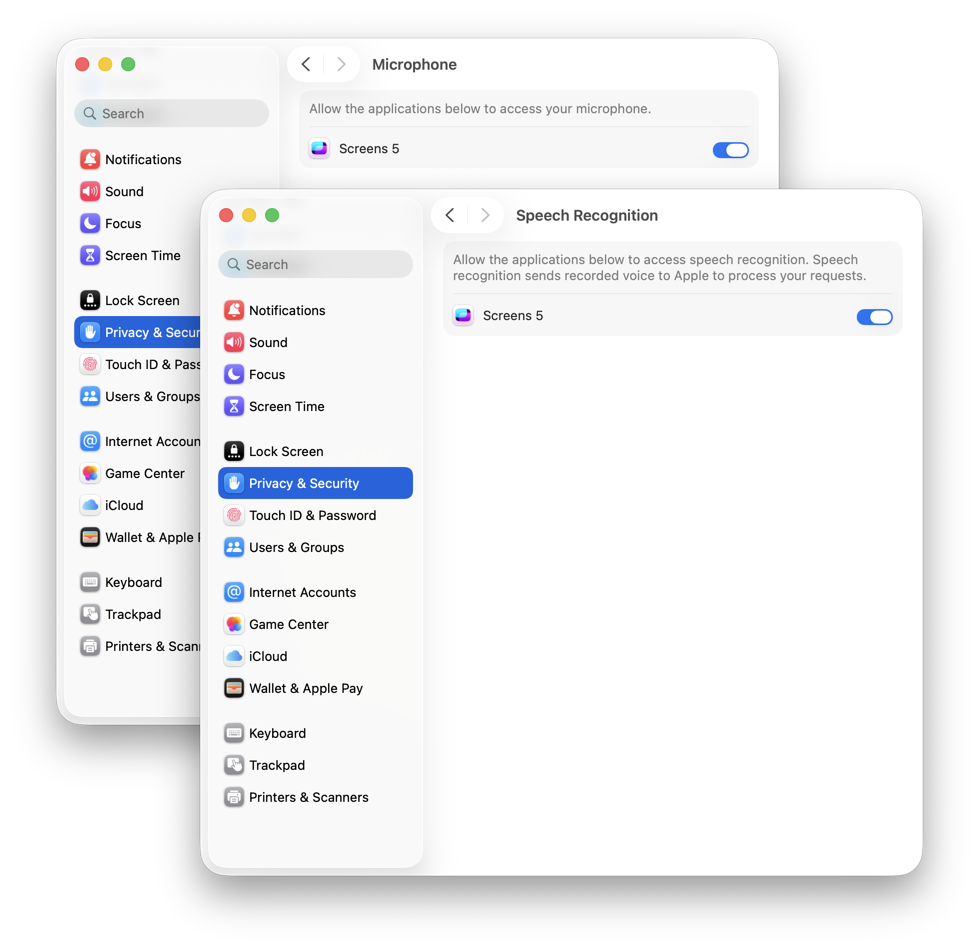
Mac
- Open System Settings
- Go to Privacy & Security
- Select Microphone and enable Screens
- Go back and select Speech Recognition
- Enable Screens
Notes
- Dictation types text into the active field on the remote computer. Make sure the correct window or input field is selected before you start.
- Recognition accuracy depends on your device language, pronunciation, and environment (background noise, microphone quality, etc.).
- If nothing is typed, verify:
- The correct field is focused on the remote machine
- Permissions are enabled
- Your OS version meets the minimum requirement