
Typing your user password for the Mac Login Window, settings adjustments, or app installations can be tedious. Screens streamlines this process by automatically entering your user password for you. Additionally, Screens enhances security by requiring authentication through Face ID, Touch ID, your Apple Watch, or your local Mac user password before executing any command. It even taps the Return key for you!
Requirements
This feature can be used with any computer provided one of the following conditions is met:
- Connecting to a Mac
- Connecting to a PC via User (RSA-AES) authentication
- Connecting via a secure connection (SSH tunnel)
When using a secure connection, Screens assumes that the credentials used to create the SSH tunnel match those of the current session on the destination computer.
How to Use
Locate the corresponding button for this feature in the interactive toolbar on your iPad, iPhone, Vision Pro or Mac:
iPad

iPhone

Note: If the Type User Password button is not visible on your iPhone, simply swipe the scrollable toolbar left or right.
Vision Pro

Mac
You'll find the button in the connection window toolbar on your Mac:
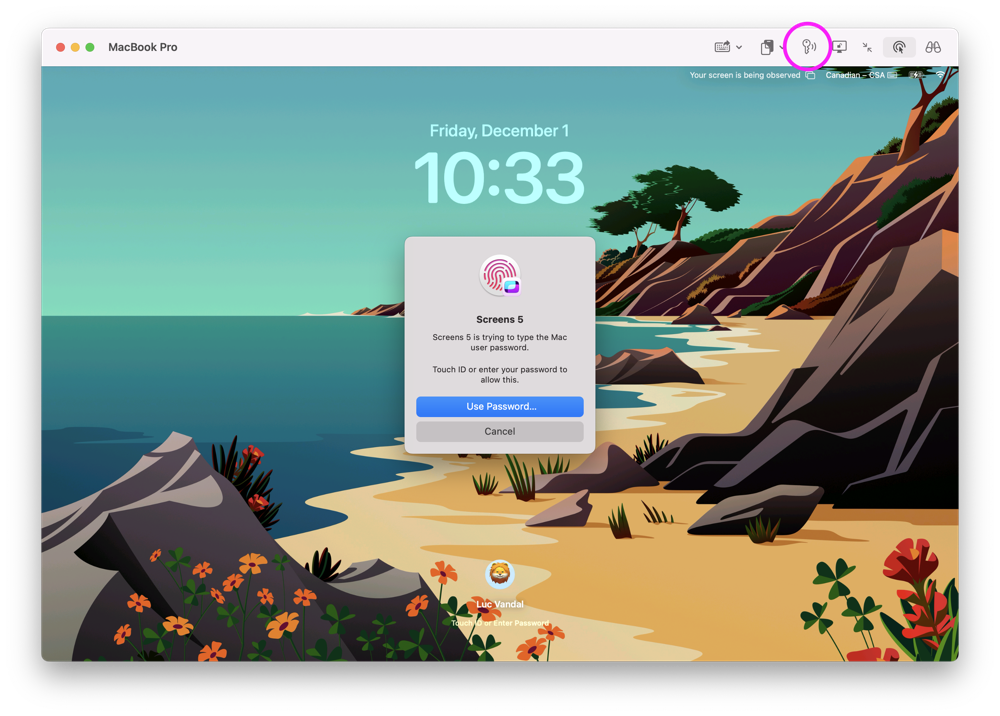
Type the Password Without Pressing Return
Starting with Screens 5.9.2, you can choose whether Screens automatically presses the Return key after typing your password:
- Click or tap the Type User Password button to type your password and automatically press Return.
- Click or tap and hold the button to type your password without pressing Return.
This is useful when you want Screens to enter your password but need to review or modify something before submitting it.
By default, Screens prompts for authentication on your iPad and iPhone before proceeding. You can customize this behaviour and other related options in the app settings under Privacy.
Limitations with Older Versions of macOS
On some older versions of macOS (such as macOS Sierra), the Login Window contains a bug where certain Unicode characters may not be accepted when typed programmatically.
Since the Type User Password feature uses Unicode, it may fail at the Login Window even though manually typing the exact same password while Keyboard Input Mode is set to Keystrokes works correctly.
This is a limitation of the operating system itself and cannot be worked around by Screens. If you encounter this issue, simply type your password manually at the Login Window.