
When utilizing Screens to connect to a Mac, accurate authentication credentials are essential for establishing one-off connections or creating a saved screen in the Screens Library.
Important: Screens uses your Mac user account to authenticate. Your Apple ID or email address cannot be used, even if you use it to sign in to your Mac or Apple services.
When you first set up your Mac, you entered your full name and created an account name (also called a short name). The account name is the username macOS uses internally for your account.
We strongly recommend using your account name, and it is required if Secure Connections are enabled.
Using Your Full Name
If Secure Connections are not enabled, you may authenticate using your full name.
This is the same full name you use when unlocking macOS or installing updates.
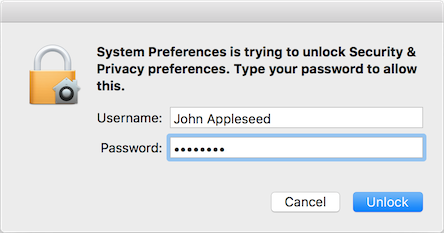
If you choose to use your full name, enter it in Screens under the General section of your connection settings:

Using Your Account Name (Recommended)
Using your account name is often the most reliable method and is mandatory if Secure Connections are enabled.
To find your account name:
- Open System Settings
- Go to General > Sharing
- Enable Remote Login (if needed)
- Click the ⓘ button next to Remote Login
You will see a line similar to:
To log in to this computer remotely, type “ssh john@192.168.1.100”
In this example, john is the account name.

Once you have your account name, enter it in Screens under the General section of your connection settings:

Using Secure Connections
If you enable Secure Connections in the Security section of your Screens connection settings, you must use your account name.
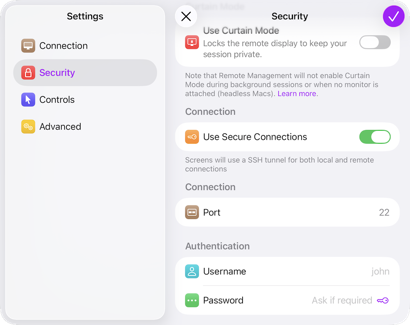
Secure Connections rely on macOS Remote Login (SSH), which authenticates using the account name. Using your full name in this case will result in an authentication failure.
If Secure Connections are enabled and you cannot connect, double-check that:
- You are using the correct account name
- The password matches that account
- The account is allowed in System Settings > General > Sharing > Remote Login