
Curtain Mode is a macOS feature that hides the display of the Mac you're connected to.
It’s useful when:
- Entering sensitive information
- Accessing sensitive files
- Preventing others from seeing your remote session
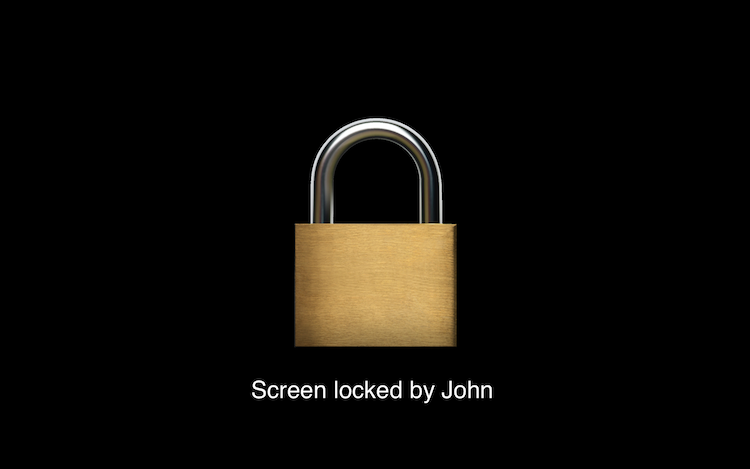
When Curtain Mode is enabled, people in front of the remote Mac will see a locked or blank display instead of your session.
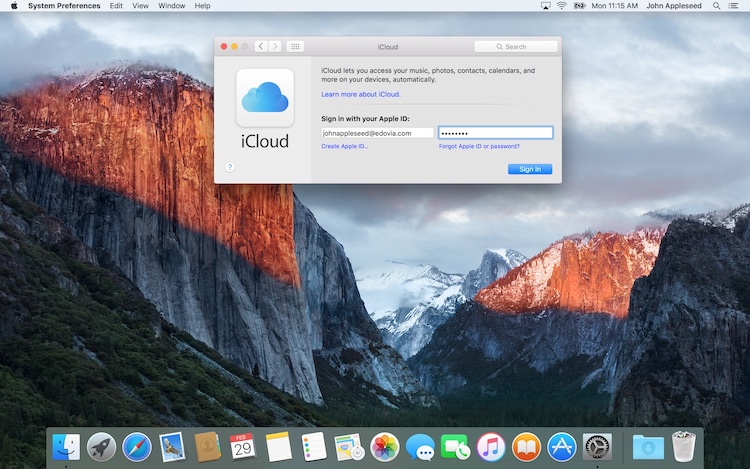
In Screens, you'll continue to see and control the remote desktop normally.
Important:
Curtain Mode requires Remote Management to be enabled on the remote Mac. It does not work with Screen Sharing. Setup instructions are available here.
Checking Curtain Mode Status
On Mac
When connecting from a Mac, the Curtain Mode button in the toolbar shows whether the feature is enabled.

Click the button to enable or disable Curtain Mode.
On iPhone, iPad, and Vision Pro
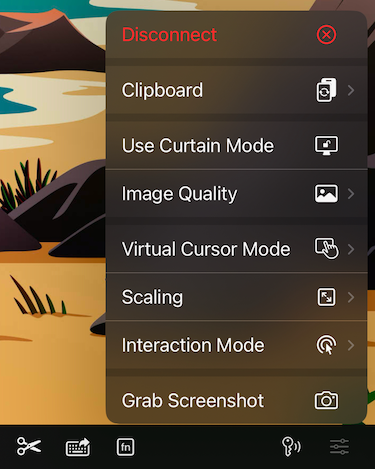
When Curtain Mode is active, an indicator appears at the top of the connection window.

To enable or disable Curtain Mode:
- Open the Actions menu
- Select Curtain Mode
Things to Know
Curtain Mode Does Not Work at the Login Window
macOS does not allow Curtain Mode to activate while the Login Window is visible.
Screens will automatically retry enabling it every few seconds after you connect. Once someone logs in to the Mac, Curtain Mode should activate normally.
Headless Macs Usually Don't Need Curtain Mode
If the remote Mac has no display attached (headless Mac), macOS already creates a private virtual display for remote sessions.
In these situations, Screens may skip enabling Curtain Mode automatically since the remote session is already hidden from view.
Brief Black Screens Are Normal
When enabling or disabling Curtain Mode, the display may briefly turn black while macOS switches between displays.
This behavior is normal.
Multiple Displays May Behave Unexpectedly
On Macs with multiple displays, Curtain Mode may:
- Prevent Screens from restoring the previously selected display
- Cause temporary display flickering
These are macOS limitations outside of Screens' control.
Mac-Only Feature
Curtain Mode is only available when connecting to a Mac.
It is not supported on Windows PCs.
Configuration
Curtain Mode settings are available in the saved connection settings under Security.
Manual Activation
If Curtain Mode is not configured to activate automatically, you can enable it manually:
- On Mac: use the Curtain Mode button in the toolbar
- On iPhone, iPad, and Vision Pro: use the Actions menu
On-Disconnect Actions
Curtain Mode may prevent certain On-Disconnect Actions from running on the remote Mac.