
If you're having trouble connecting to a Mac that was previously accessible — for example after upgrading macOS, migrating to a new Mac, if Screens gets stuck at Downloading…, or if you receive an incorrect username or password error — the steps below can often resolve the issue.
This article will guide you through:
- Resetting the Screen Sharing or Remote Management service
- Resetting Remote Login (SSH), if enabled
- Checking your macOS Firewall settings
- Allowing Screens to access your Local Network
Important:
These steps must be performed while physically in front of the Mac. Some steps may temporarily interrupt remote access.
Reset Screen Sharing or Remote Management
Most users use Screen Sharing. However, if you use Curtain Mode, you'll be using Remote Management instead.
On macOS 13 Ventura or later
-
On the Mac you're connecting to, click here to open the Sharing settings.
-
Check which service is enabled:
- Screen Sharing
- Remote Management
-
Turn the enabled service off, wait a few seconds, then turn it back on.
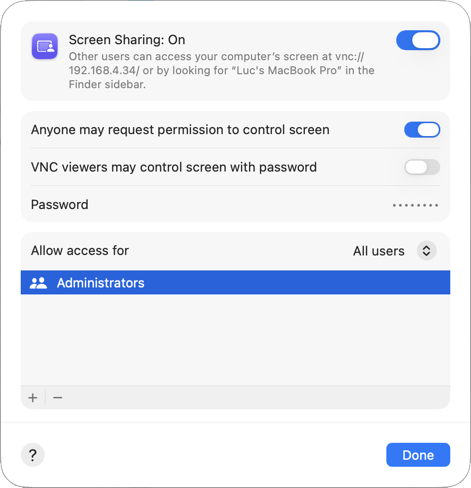
If you're using Screen Sharing
- Click the ⓘ button next to Screen Sharing.
-
Under Allow access for, select All users.
If you prefer to limit access, choose Only these users and make sure your macOS user account is included.
If you're using Remote Management
- Click the ⓘ button next to Remote Management.
-
Under Allow access for, select All users.
If you prefer to limit access, choose Only these users and make sure your macOS user account is included.

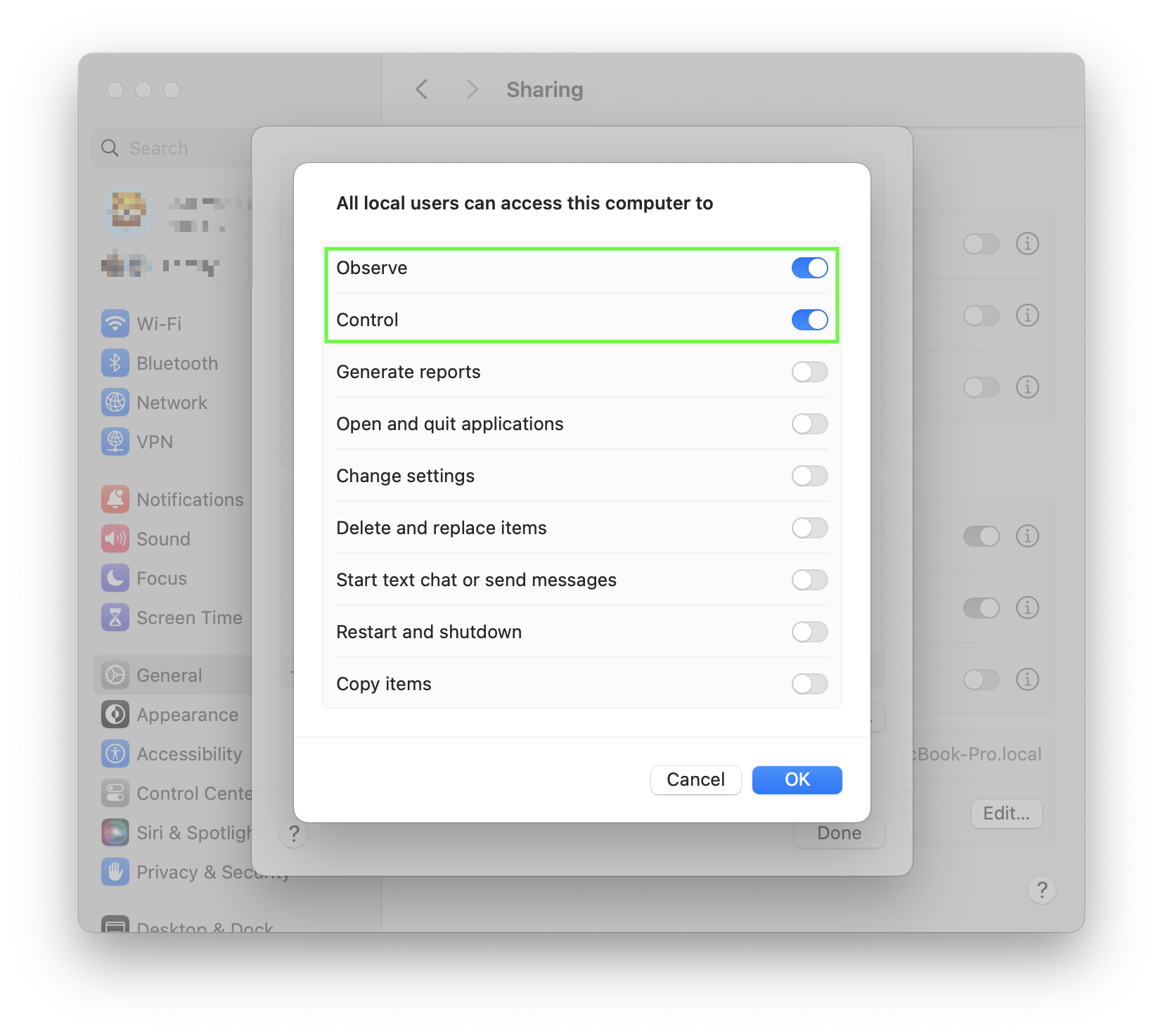
- Click Options…

-
Ensure that both Observe and Control are enabled.
If they are already enabled, try disabling and re-enabling them to force a reset.
On macOS 12 Monterey or earlier
-
On the Mac you're connecting to, click here to open the Sharing settings.
-
Check which service is enabled:
- Screen Sharing
- Remote Management
-
Disable the enabled service, wait a few seconds, then enable it again.
If you're using Screen Sharing
- Ensure that your macOS user account (or All Users) is allowed to connect.
If you're using Remote Management
-
Click Options…
-
Ensure that both Observe and Control are enabled.
If they are already enabled, try disabling and re-enabling them to force a reset.
-
Ensure that your macOS user account (or All Users) is allowed to connect.
Reset Remote Login (SSH)
If you've enabled secure connections for this Mac, follow these instructions.
On macOS 13 Ventura or later

- On the Mac you're connecting to, click here to open the Sharing settings.
- Turn Remote Login off, wait a few seconds, then turn it back on.
- Click the ⓘ button next to Remote Login.
- Ensure that your macOS user account (or All Users) is allowed to connect.

On macOS 12 Monterey or earlier
- On the Mac you're connecting to, click here to open the Sharing settings.
- Disable Remote Login, wait a few seconds, then enable it again.
- Ensure that your macOS user account (or All Users) is allowed to connect.
Check the Firewall Settings
If the Firewall is enabled on your Mac, make sure it allows incoming connections.
On macOS 13 Ventura or later
- On the Mac you're connecting to, click here to open the Network settings.
- Select Firewall.
- Click Options…
- Ensure that the following are set to Allow incoming connections:
- Screen Sharing or Remote Management
- Remote Login (if enabled)
On macOS 12 Monterey or earlier
- On the Mac you're connecting to, click here to open the Network settings.
- Select Firewall.
- Click Firewall Options…
- Ensure that the following are set to Allow incoming connections:
- Screen Sharing or Remote Management
- Remote Login (if enabled)
Allow Local Network Access
iPhone or iPad
Screens needs permission to detect computers on your local network.
- Open the Settings app.
- Go to Privacy & Security > Local Network.
- Make sure Screens is enabled.

Vision Pro
- Open the Settings app.
- Go to Privacy & Security > Local Network.
- Make sure Screens is enabled.

macOS 15 Sequoia or later
Starting with macOS 15 Sequoia, apps must be authorized to detect devices on your local network.
- Open the System Settings app.
- Go to Privacy & Security > Local Network.
- Make sure Screens is enabled.

Note:
This step only needs to be performed on Macs where Screens is installed and used to initiate connections.